How to install a Samsung NVMe SSD driver on Windows Server
Samsung NVMe SSDs are fast, relatively cheap, and reliable. They work well for Firebird databases that need high I/O.
Samsung sells many of these drives as “consumer” products. Marketing and price are the main differences versus “enterprise” drives. In our tests, Samsung NVMe SSDs have been reliable. We run heavy daily performance tests on them and have not seen failures over several years.
The problem is the official installer. It checks the Windows edition and refuses to install on Windows Server.
This article describes a workaround: extract the MSI from the installer and run that MSI on Windows Server.
1. Download the Samsung NVMe driver
Open a Samsung support page for the 970 EVO Plus and download NVMe Driver version 3.3 (Samsung_NVM_Express_Driver_3.3.exe). Do not download Samsung Magician for this workaround.
Use either page:
- United States: 970 EVO Plus Series (250GB) support
- China: 970 EVO Plus NVMe M.2 support
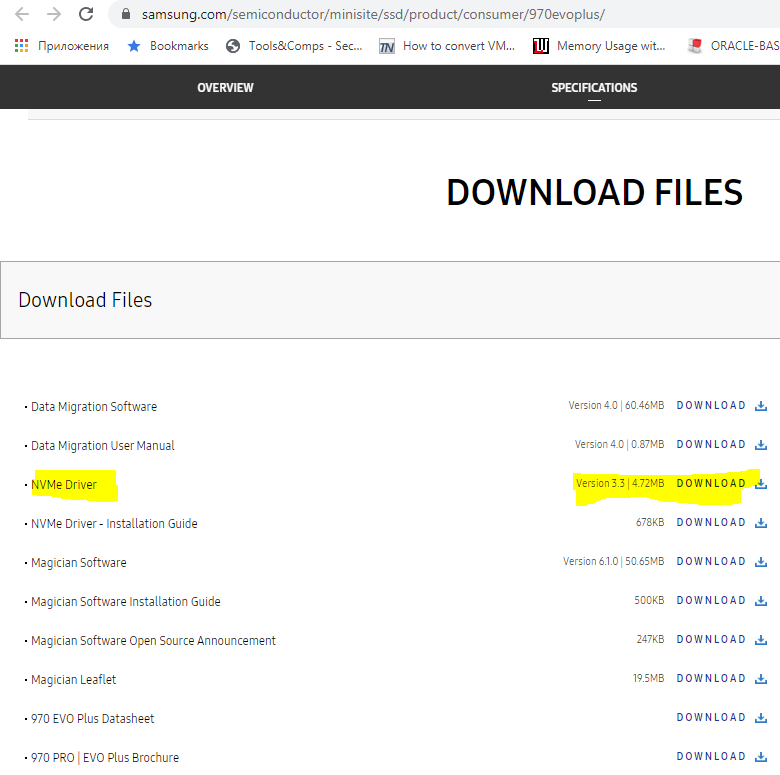
Save the file as:
C:\Temp\Samsung_NVM_Express_Driver_3.3.exe
The file name and version can differ. Use the name of the file you downloaded in the next steps.
2. Download WiX Toolset binaries
You need WiX to unpack the .exe installer.
- Open https://wixtoolset.org/releases/.
- Open a production build.
- Download wixXXX-binaries.zip.
Direct link for WiX 3.11.2:
https://github.com/wixtoolset/wix3/releases/download/wix3112rtm/wix311-binaries.zip
3. Unpack WiX
Extract the ZIP file to C:\Wix.
4. Extract the Samsung installer
Open a Command Prompt in C:\Wix. Run dark.exe to unpack the Samsung installer:
dark.exe C:\Temp\Samsung_NVM_Express_Driver_3.3.exe -x c:\Temp\SamsungDriver
Example output:
C:\wix>dark.exe C:\Temp\Samsung_NVM_Express_Driver_3.3.exe -x c:\Temp\SamsungDriver
Windows Installer XML Toolset Decompiler version 3.11.2.4516
Copyright (c) .NET Foundation and contributors. All rights reserved.

Samsung_NVM_Express_Driver_3.3.exe

C:\wix>
After this command, C:\Temp\SamsungDriver contains two folders: AttachedContainer and UX.
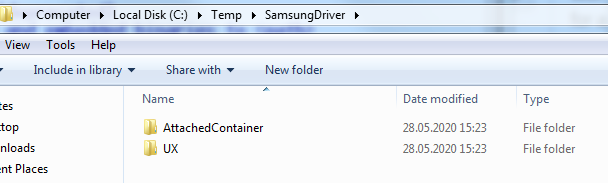
5. Open AttachedContainer
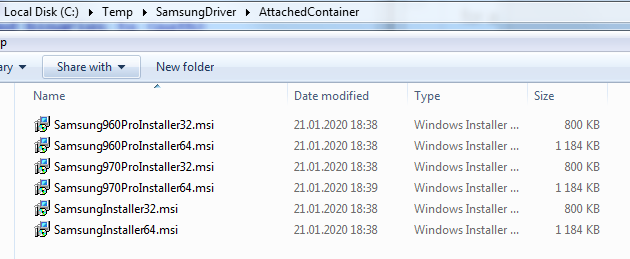
Open C:\Temp\SamsungDriver\AttachedContainer. You will see several .msi files:
6. Install the 64-bit MSI on Windows Server
On Windows Server, run Samsung970ProInstaller64.msi.
This MSI also works for EVO series drives, not only 970 PRO.
7. Initialize and format the disk
After a short install, Windows either:
- shows the new disk in Disk Management, or
- asks you to restart the server.
When the disk appears in Disk Management:
- Right-click the left box of the disk (the area that says Not initialized).
- Choose Initialize.
- Create a volume and format it, as usual.
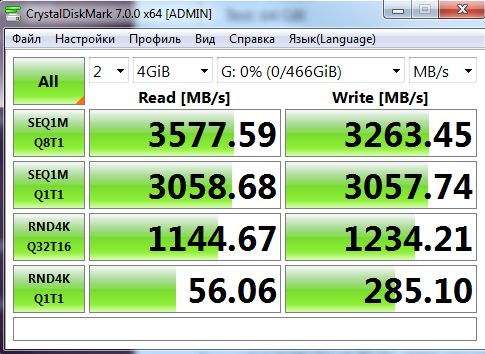
Then test the disk with CrystalDiskMark or a similar tool. Example result for a Samsung 970 EVO Plus:
8. Protect your databases
Any disk can fail. Keep Firebird backups, or use replication, even after you install a fast SSD.